Action Language
Customers use Dialpad to connect with others. Content should be written and structured to help them understand and take the most important actions.
Headings and Subheadings
Basic Structure
Headings and subheadings are titles and subtitles that refer to interface sections. These should be:
- Informative and descriptive
- Highlight the most important concept or information for users
- Help users understand what they’ll find in the sections
- Concise and scannable
- Use simple, clear language
- Keep headings to a single sentence
- Avoid using punctuation such as periods, commas, or semicolons
- Write headlines in sentence casing, capitalizing the first word and proper nouns only
Do
- Start meeting
- Invite users
- Create Ai Playbook
- Port number
Don’t
- Start a meeting
- Invite users to your Dialpad account
- Create ai playbook
- Port your Number to Dialpad
Articles
Using articles (“the”, “a”, “an”) in titles depends on the message.
Conversational Headings
For conversational areas in the product, like empty states, use articles. It makes the language more approachable and helps users understand potentially new, complex concepts.
Do
- Secure your account with multi-factor authentication
Don’t
- Multi-factor authentication
Microcopy Headings
For labels, titles, and microcopy, avoid using articles to keep content short and action-oriented. This increases readability and scannability, encouraging action.
Do
- Start meeting
Don’t
- Start a new meeting
- Start new meeting
- Start a meeting
Sentences
Start sentences with imperative verbs when introducing actions that can be (or need to be) taken. This is especially important when introducing new concepts or features. Sentences should sound instructional and actionable. Don’t use permissive language such as “you can” or “you might consider”.
Do
- Select departments observing this holiday
- Ensure calls are correctly routed by selecting the best option below.
Don’t
- Select the departments that will observe your new holiday.
- Calls can be routed to the right team every time. Identify the best routing option below that fits your business needs.
Shorter sentences are preferred because they’re easier to scan and understand. Focus sentences on single ideas to help break them down. Use the active verb structure (subject + verb + object). Avoid complex constructions.
There are times when longer sentences might be appropriate for conveying complex information. In these instances, clearly state the information in a well-structured format, using the following principles:
- Avoid unnecessary long sentences
- Avoid subordinate clauses (e.g., “When a caller is redirected to voicemail”)
- Change up sentence lengths to provide better text rhythm
- Break longer sentences into shorter ones whenever possible
Buttons
Like headlines, buttons need to be clear and concise. Users should be able to anticipate what will happen when they press or tap the button. Never mislead someone by mislabeling a button. When creating button labels, use the following rules:
- Always start with a strong verb that encourages action
- Labels should provide enough context for users
- Use a “verb” + “noun” formula except for common action scenarios (e.g., “Done”, “Close”, “Cancel”)
- Avoid unnecessary words and articles such as “the”, “an”, or “a”
- Buttons should always be written in title case
Do
- Visit Help Center
- Schedule Meeting
- View Submission
- Create Holiday
Don’t
- View help center
- Schedule a meeting
- Submission
- Create new holiday
Links
Like buttons, links need to be clear and predictable. Users should be able to anticipate what will happen when they click on a link. Never mislead someone by mislabeling a link. Never use “click here” or “here” as link text.
Links Within Sentences
When using links in sentences, avoid linking the entire sentence. Only link the text that describes the link. Whenever possible, keep link text to single terms or small phrases. This makes it easier for internationalization as word order may change with translations.
Do
- Virtual backgrounds only work in the latest versions of Google Chrome.
- Add a desk phone or forwarding number below.
Don’t
- Virtual backgrounds only work in the latest versions of Google Chrome. To learn more, click here.
- Add a desk phone or forwarding number below.
Links Outside Sentences
Links outside sentences should follow the same approach as buttons. They should only be punctuated with question marks.
Don’t
“Learn More” Links
When linking out to further documentation, link relevant keywords. Avoid adding additional sentences with “Learn more…” as it’s repetitive and takes up unnecessary space.
Only add a “Learn more…” sentence if the preceding sentence addresses multiple concepts, each of which could be linked to their own document. In that situation, pick the most relevant link and contextualize it with “Learn more…”
Do
- Ensure SMS message delivery by registering your campaign.
- Dialpad retains data until it is deleted, an account is canceled, or a retention policy is set up. Canceled accounts are deleted after 180 days. Learn more about Dialpad’s data retention policies.
Don’t
- Learn more about registering your SMS campaign..
- Dialpad retains data until it is deleted, an account is canceled, or a retention policies is set up. Canceled accounts are deleted after 180 days.
Confirmations
Confirmations are provided for actions which can’t be undone or are difficult to undo. These messages should:
- Always give users an option to confirm or cancel the action
- Be used for single, primary task
- Keep body content to a single line and not use more than two calls to action
Confirmation titles should:
- Ask if users want to continue, using a concise “verb” + “noun” question
- Keep it to one sentence and avoid using punctuation except when using question marks
- Avoid articles (the, a, an) to keep content short and actionable
- Be written in sentence case
Do
- Add fax number
- Create contact center
- Delete department?
Don’t
- Add Fax Number
- Create a New Contact Center
- Are you sure you want to delete this department?
Confirmation body content should:
- Clearly explain if the action is difficult to undo or irreversible using plain language
- Be concise: use only one text line. Don’t start sentences with “Are you sure…”
Do
- This can’t be undone.
- Deleting a department cannot be undone.
- Leaving this page will delete all unsaved changes.
Don’t
- Are you sure you want to permanently delete this department? This action cannot be reversed.
- If you delete a department, you will be unable to access it in the future.
- If you leave this page, all unsaved changes will be lost. Are you sure you want to leave this page?
Confirmations primary and secondary actions should:
- Be clear and predictable: users should be able to anticipate what will happen when they click an action
- Scannable: avoid unnecessary words and articles such as “the”, “an”, or “a”
Since confirmation messages appear in modals, titles and buttons are closer to each other than they normally would appear. Because of this, button text doesn’t have to follow the “verb” + “noun” pattern. Instead, one word calls to action can be used such as “Cancel” or “Delete”.
Deletions
Before users can delete objects like contacts, departments, contact centers, or responses, we present them with a confirmation message that has two calls to action. One to “Cancel” and one to “Delete”. Keep it short and don’t use the “verb” + “noun” button copy approach.
Primary action:
Do
- Delete
Don’t
- Remove
- Erase
- Discard
Secondary action:
Do
- Cancel
Don’t
- Discard
Discarding Changes While on a Page
Primary action:
Do
- Discard
Don’t
- Cancel
Secondary action:
Do
- Keep Editing
Don’t
- Go Back
- Cancel
Leaving a Page with Unsaved Changes
Primary action:
Do
- Leave Page
Don’t
- Exit
- Delete changes
Secondary action:
Do
- Stay
Don’t
- Go Back
- Cancel
- Discard
- Keep Editing
Directional Language
Just as links should never state “click here”, avoid using directional language such as “above” or “right”. This language is confusing and unhelpful when picked up by screen readers. It creates challenges for internationalization and can conflict with mobile-friendly designs.
The use of directional language is often an indication of poor visual or content hierarchy. Whenever possible, keep instructional copy and related actions close together so directional language isn’t needed.
Save vs. Done
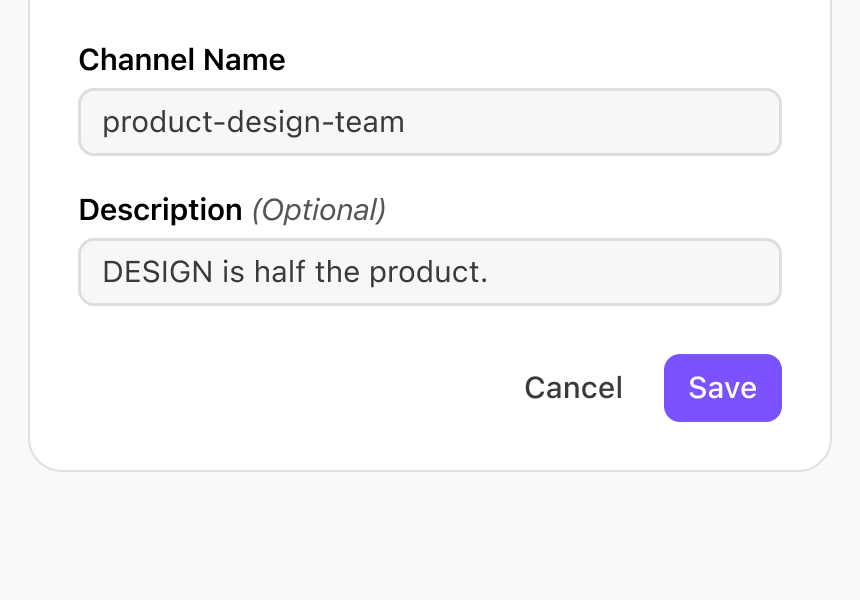
Use “Save” when the user is making an immediate change and “Done” for deferred saves. Examples for when to use “Save” are when updating a contact, editing a channel’s description, or changing settings. Use “Done” when confirming changes inside a modal or popover that will be applied to the current page, but those updates won’t save to the database.
Saving in Modals and Sheets
Use “Save” in modals and popovers when the user’s changes are saved directly to the database.
Do
Don’t
- Exit
- Done
- Apply
Saving at the Bottom of a Page
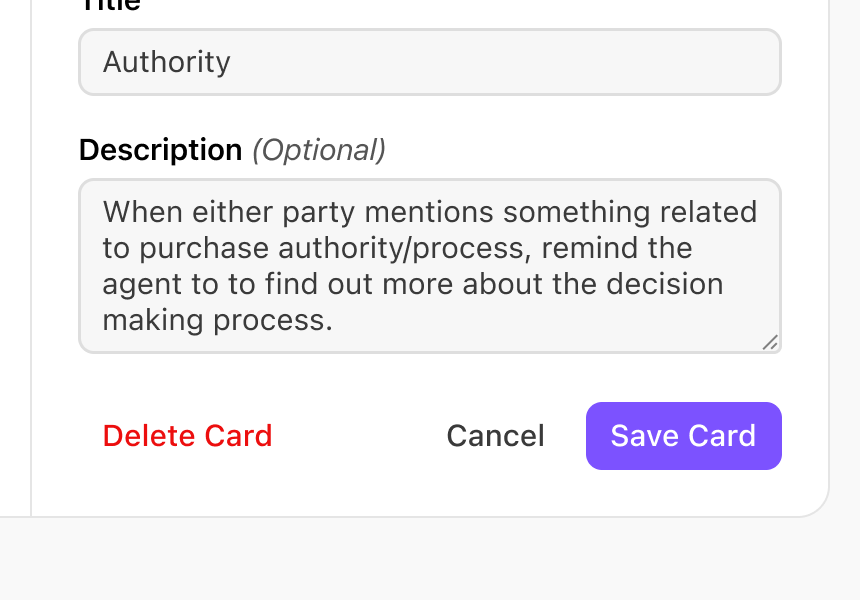
Use the “Save” + “noun” content formula for save button actions at the bottom of a page when you don’t have the provided context of a modal or compose bar.
Do
Don’t
- Create discount
- Save
- Done
- Apply
Deferred Saves
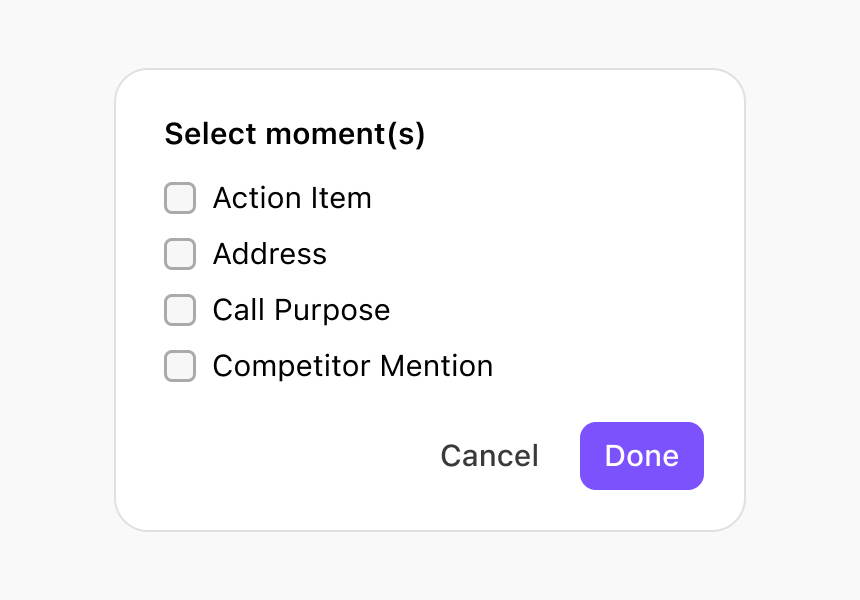
Sometimes, when users confirm changes inside a modal or popover, those changes are applied as unsaved changes to the current page. These updates do not immediately save to the database, but require an additional “Save” action. In these instances, do not use the “Save” verb as this call to action would be misleading.
Instead use “Done” here. When the modal or popover closes, the user will be able to see the impact of their changes and then save them.
Do
Don’t
- Add
- Edit
- Manage
- Save
- Apply
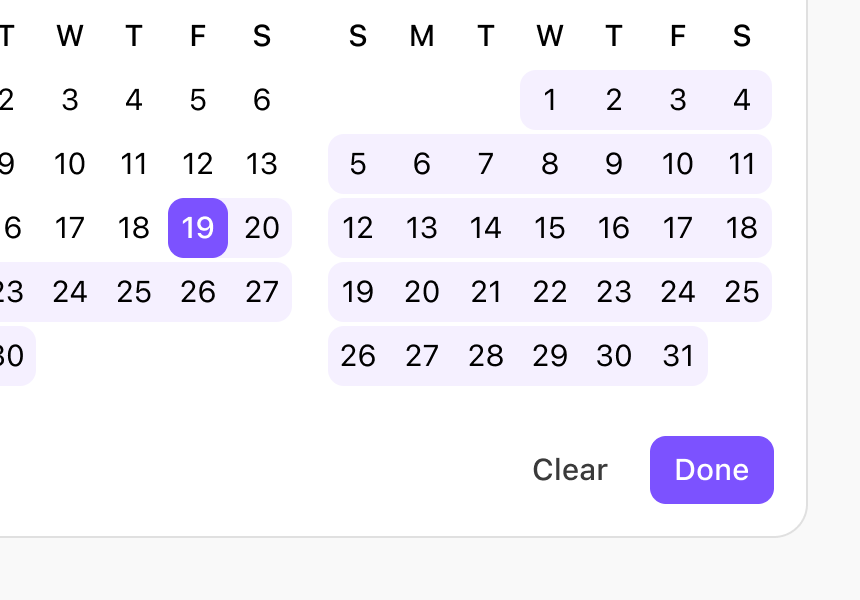
When using a datepicker, also use “Done”.
Do
Don’t
- Select
- Save
- Apply
Close vs. Accept
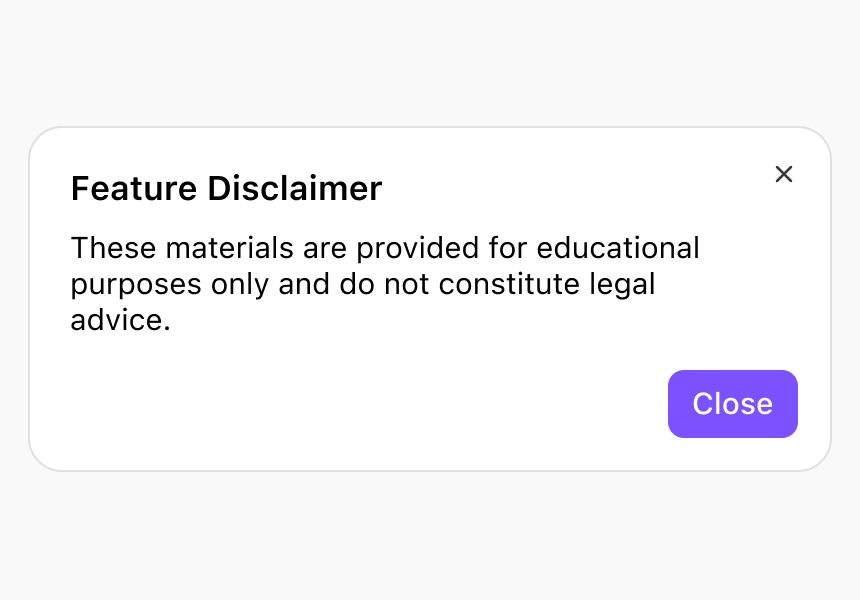
Use the verb “Close” when users confirm that they’ve finished reading something, but aren’t required to legally accept terms of service before continuing. Don’t use “OK” as that is an exclamation—not an action. When users click “Close”, they’re not saying “OK”—they’re completing a specific action.
Do
Don’t
- Ok, OK, O.K., Okay
- Done
- Accept
- Continue
Use the verb “Accept” when terms of service require legal confirmation before continuing.
Do
- Accept
Don’t
- Ok, OK, O.K., Okay
- Done
- Close
- Continue
Close vs. Cancel
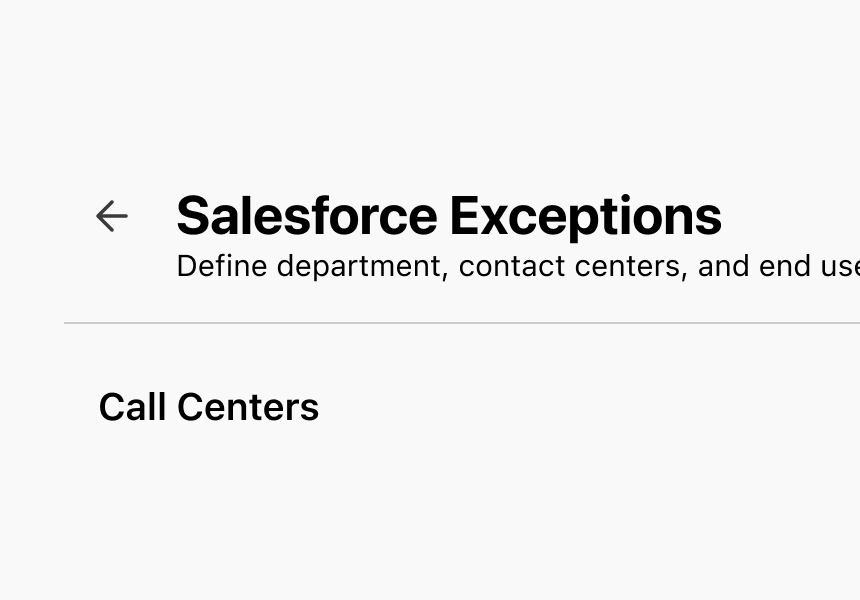
Use back arrow buttons as a call-to-action for modals and screens when the content is in a “view-only” state. Don’t use “Close” as the call-to-action when users can make changes to the screen, confirm they’ve read something, or accept terms of service (see “Close vs. Accept”).
Do
Don’t
- Cancel
- Exit
- OK
Use the “Cancel” action as an option for users to back out changes made on a page, modal, or popover. When pressed, changes are automatically discarded. The “Cancel” action is often paired with “Save” and “Done” actions, always being placed on the far left.
Do
Don’t
- Done
- Exit
- Close
Select vs. Choose
Use the verb “select” when:
- Picking from a limited number of similar options
- Making an easy or obvious decision that doesn’t require deep reflection or analysis
- Presenting defined lists and dropdown menus
- Picking from existing objects, such as departments
Pair “Select” modals and screens with the “Done” action.
Do
- Select people
- Select your timezone
- Select department
Don’t
- Choose timezone
- Select a pricing plan.
Use the verb “choose” when:
- Encouraging users to make a decision that is more subjective, strategic, emotional, or open-ended
- Picking from a large inventory of items or options that require strategic decision making, such as pricing plans
Do
- Choose a pricing plan
- Choose a routing option
Don’t
- Select a routing option
- Choose a country
- Pick a pricing plan
Edit vs. Manage
Use the verb “edit” when you can change the value of an input field (letters, numbers, properties). Place the action next to the field or area that is editable. There’s no need for a noun in this instance unless it’s unclear what’s being edited.
Do
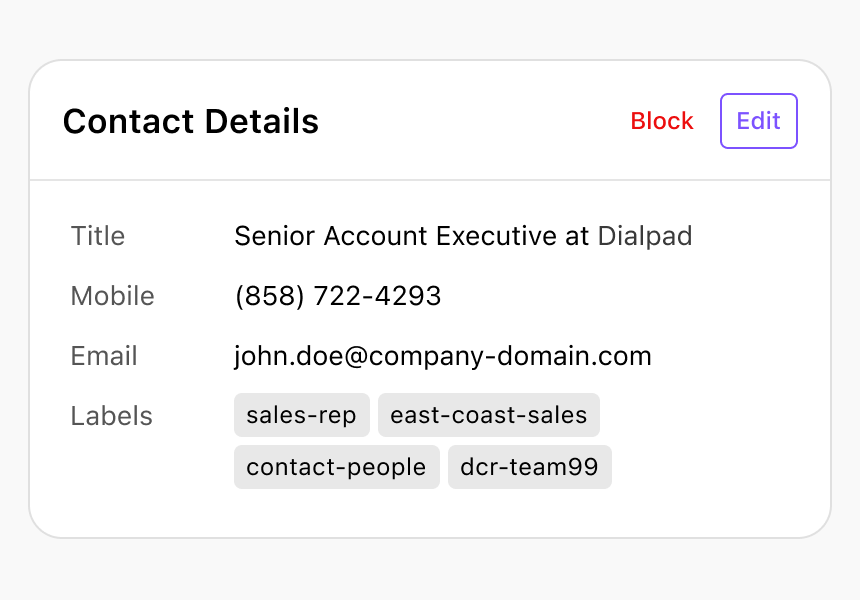
- Edit a Real-Time Assist card
Don’t
- Use “Edit” if multiple actions can be taken. Use “Manage” instead.
- Modify
Use the verb “manage” when multiple actions can be done or sections and settings will be updated at the same time. Pair this verb with a noun if it’s in a button or it’s unclear what is being managed.
Do
- Manage notifications
- Manage multiple items
Don’t
- Edit
- Modify
Change vs. Switch
Use the verb “change” when users can replace an option, but not edit it. This is most common when changing an image or app theme. This action doesn’t include the ability to edit the properties. There’s no need for a noun unless it’s unclear what’s being changed.
Do
- Change
- Change background
Don’t
- TBA
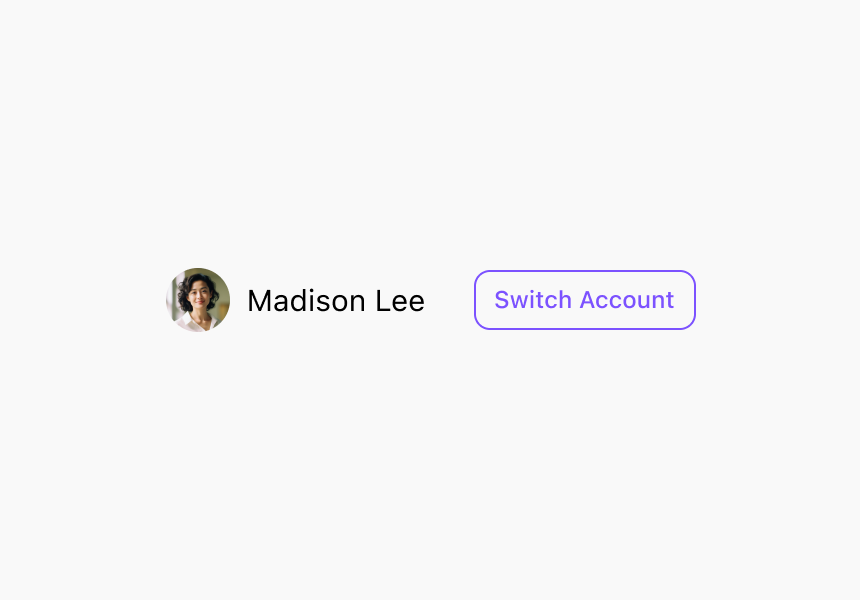
Use the verb “switch” when it’s important for users to know what they’re switching between like users, accounts, phone numbers, or modes. When the switch happens, the previous option is turned off, logged out, or deactivated. Always pair “switch” with a noun in titles to prevent confusion.
Do
Don’t
- Switch phone number
- Switch account
Create vs. Add
Use the verb “create” when encouraging users to generate something from scratch, like an office.
Do
- Create Router
- Create Office
Don’t
- Add router
- Add office
Use the verb “add” when encouraging users to extend something that already exists, like a response.
Do
- Add Contact
- Add Response
Don’t
- Create Contact
- Create Response
View vs. See
Use the verb “view” when encouraging users to visit a specific page or section for more information, or to reveal more information. Use “view” in buttons, calls to action, and link text.
Do
- View all { x }
- View call summary
- View analytics
- Try clearing your filters to view all results
Don’t
- See all { x }
- See call summary
- See analytics
Use the verb “see” in more general, conversational descriptions without a specific call to action.
Do
- Create your first chatbot and see how it looks.
- Agents will see these questions during the call.
Don’t
- Create your first chatbot and view how it looks.
- Agents will view these questions during the call.
Need vs. Must
Use the verb “need” when telling users they’re required to do or should do something.
Do
To allow agents time to wrap-up between calls, you need to set a wrap-up time allowance.
Don’t
To allow agents time to wrap-up between calls, you must set a wrap-up time allowance.
Export vs. Download
Use the verb “export” when a user needs to transfer data from Dialpad and convert it into a different format.
Do
- Export CSV file
Don’t
- Download CSV file
Use the verb “download” as a call to action when users need to copy data (of the same format) from Dialpad to another system.
Do
- Download recording
- Download chat history
Don’t
- Export recording
- Export chat history
Import vs. Upload
Use the verb “import” when a user needs to transfer data and convert it into a different format so it can be used in Dialpad.
Do
- Import CSV file
Don’t
- Upload CSV file
Use the verb “upload” as a call to action when users need to copy data (of the same format) into Dialpad.
Do
- Upload image
- Upload file
Don’t
- Upload CSV file
- Import image